How to Choose a Laptop in 2026: A Plain-English Buying Guide
Processors, RAM, screens, battery, ports and AI PCs explained without jargon — so you can read any laptop spec sheet and only pay for what you will actually use.
We may earn a commission from links on this page. It never influences our picks.
Laptop spec sheets are written to impress, not to inform. Chip names change every year, “AI PC” stickers are everywhere, and two laptops with the same processor can perform very differently. This guide cuts through it. Read it once and you will know which numbers matter, which ones to ignore and where to spend your budget.
The 30-second checklist
- Memory (RAM)16GB minimum for Windows and Mac; 8GB is fine only on a Chromebook.
- Storage512GB SSD for most people; 1TB for creators and gamers.
- Screen300+ nits brightness and 100% sRGB colour; 120Hz is a nice bonus.
- Battery50Wh or more on a 13–14-inch laptop; check independent tests.
- WeightUnder 1.4 kg (3 lb) if you carry it every day.
Step 1: Choose your platform
| Platform | Best for | Watch out for |
|---|---|---|
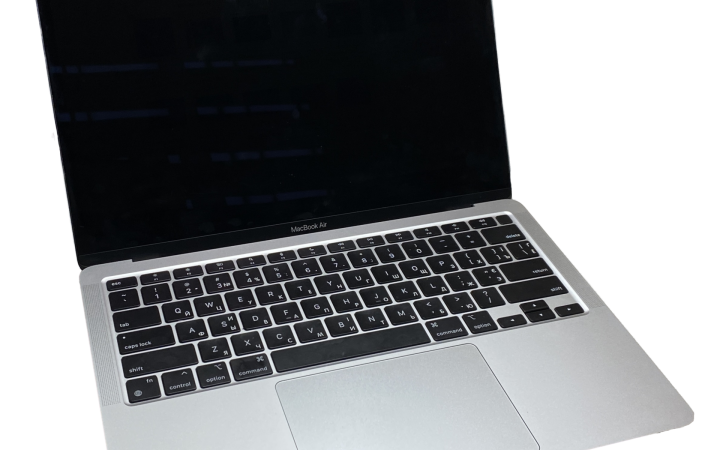
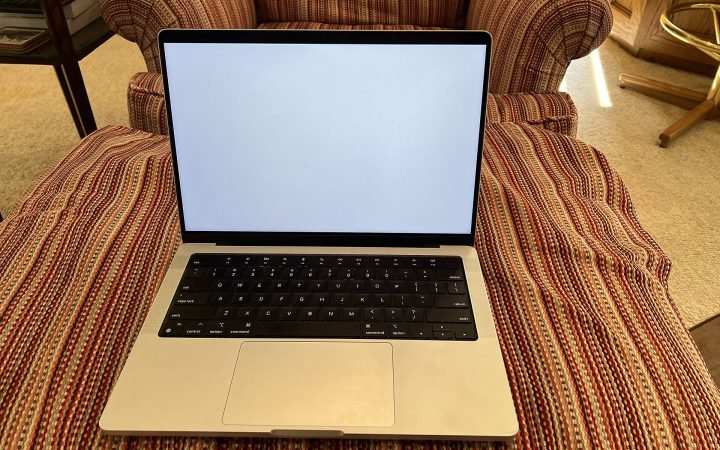
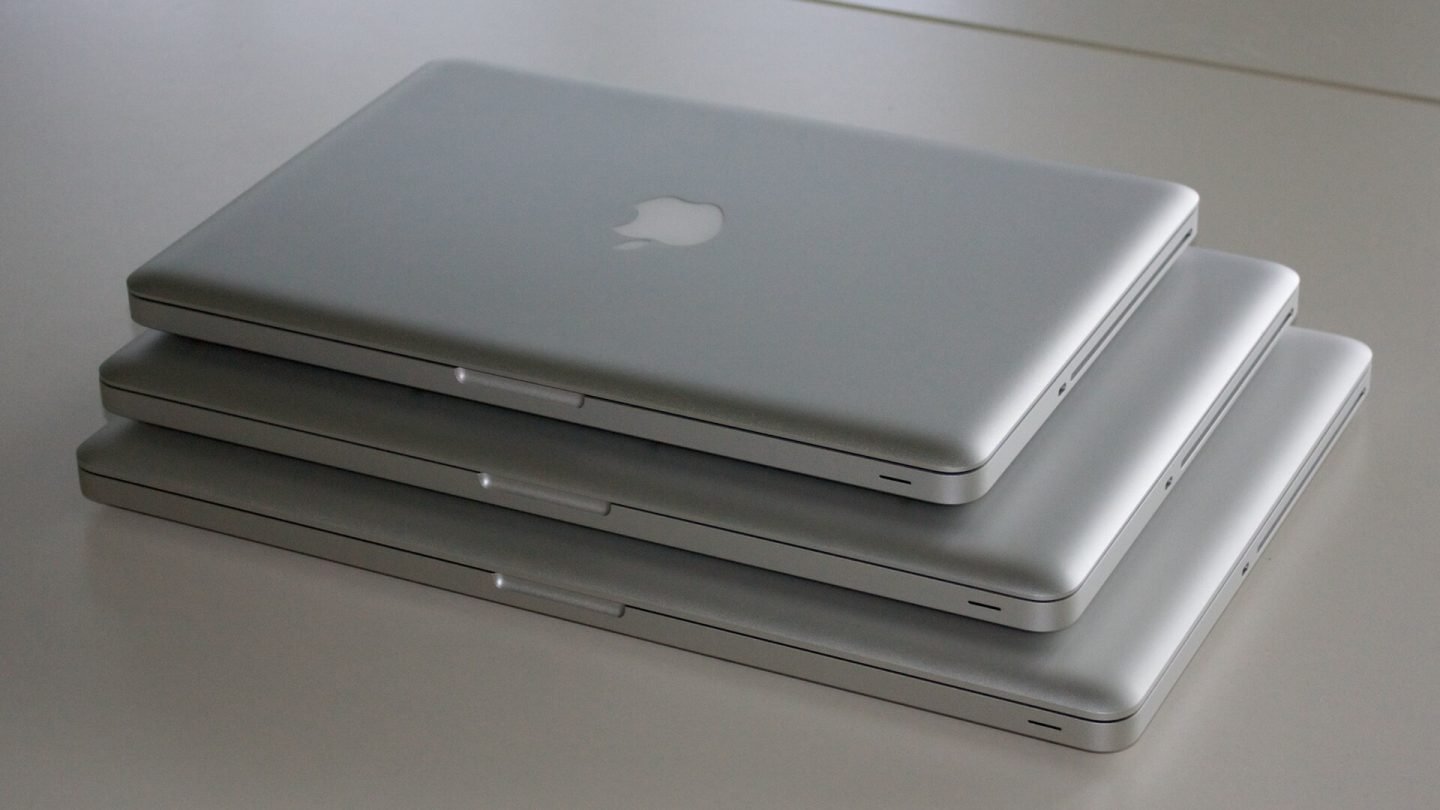
| macOS (MacBook) | Battery life, build quality, iPhone users, creative work | Higher prices; some engineering and gaming software is Windows-only |
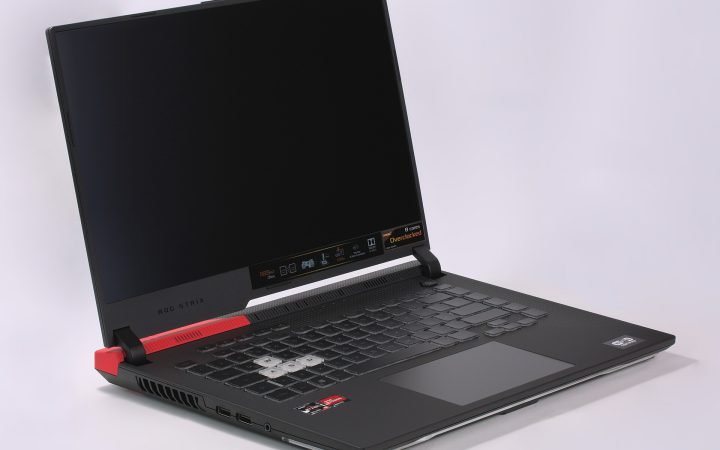
| Windows | Widest software and game support, every price point | Quality and battery life vary widely between models |
| ChromeOS (Chromebook) | Web-based work, students, tight budgets | No full desktop apps like Photoshop or Premiere |
If you rely on a specific app for work or study, check which platforms it supports before anything else. That one decision narrows the field more than any spec.
Step 2: Pick the right size
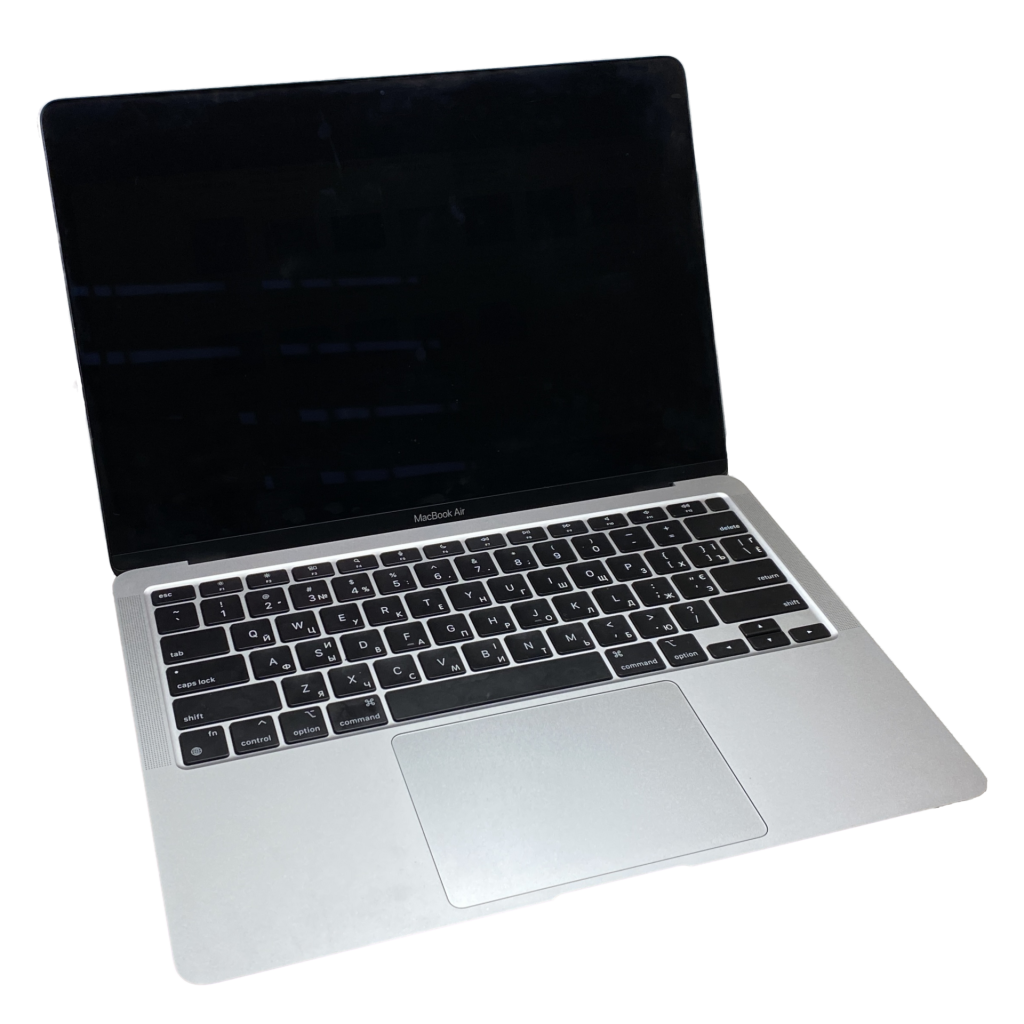
Screen size drives weight, battery and portability. 13–14-inch laptops are the sweet spot for carrying every day. 15–16-inch models give you more room for spreadsheets, video editing and gaming, but they are noticeably heavier. If you mostly work at a desk, a smaller laptop plus an external monitor is often the best of both worlds.
Step 3: Understand the processor
For browsing, email, Office and streaming, any current chip is fast enough. What matters more is efficiency, because it determines battery life and fan noise. The main families today:
- Apple M-series — class-leading efficiency and performance; macOS only.
- Qualcomm Snapdragon X — excellent battery life on Windows; check your apps run on Arm.
- Intel Core Ultra — the broadest Windows compatibility, with much-improved battery life in recent generations.
- AMD Ryzen AI — strong multi-core and graphics performance, great value in mid-range laptops.
Ignore the headline “up to” clock speed. Manufacturers run the same chip at different power levels, so a thin laptop can be slower than a thicker one with an identical processor. Independent reviews are the only reliable way to compare.
Step 4: Get enough memory and storage
RAM is the spec most people under-buy. Modern browsers, video calls and on-device AI features use a lot of memory, and on most thin laptops it is soldered and cannot be upgraded. Buy 16GB as a minimum and 32GB if you edit video, run virtual machines or keep dozens of apps open.
Every modern laptop uses a fast SSD, and you will rarely notice speed differences between them. Capacity is what you will feel: 512GB is right for most people, 1TB for creators and gamers. Upgrading storage at purchase is usually cheaper than paying for cloud storage every month for years.
Recommended specs by budget |
|
|---|---|
| Under $600 | Chromebook Plus or Windows laptop with 8–16GB RAM, 256–512GB SSD |
| $600–$1,000 | 16GB RAM, 512GB SSD, bright 1920×1200 screen |
| $1,000–$1,500 | 16–24GB RAM, 512GB–1TB SSD, OLED or high-res screen |
| $1,500+ | 32GB RAM, 1TB SSD, 120Hz screen, dedicated GPU if needed |
Step 5: Don’t ignore the screen
You look at the screen every second you use the laptop, so it deserves more attention than most buyers give it. Aim for at least 300 nits of brightness (400+ if you work near windows or outdoors) and 100% sRGB colour coverage. Avoid any laptop listing “45% NTSC” colour — it will look dim and washed out.
OLED screens offer perfect blacks and rich colour but are glossier. 120Hz refresh rates make scrolling smoother and are increasingly common in mid-range laptops.
Step 6: Check ports and battery
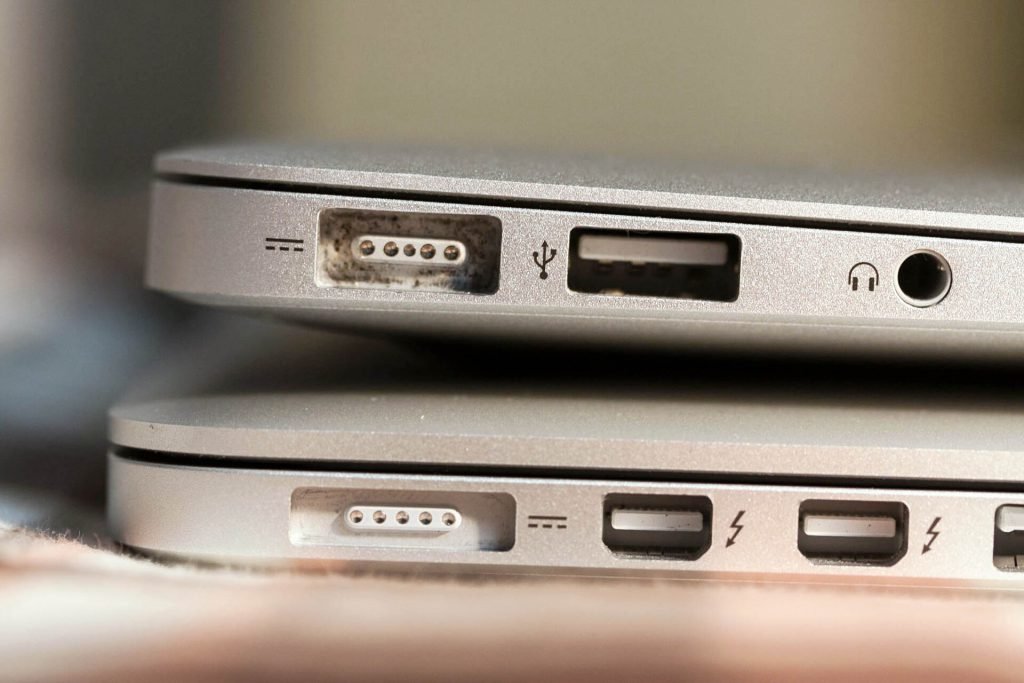
Two USB-C ports with charging is the minimum; Thunderbolt 4 or USB4 lets you connect fast docks and multiple monitors. If you rely on USB-A drives, HDMI projectors or SD cards, look for those ports specifically or budget for a hub.
For battery, look at capacity in watt-hours (Wh): 50–60Wh is solid for a 13–14-inch laptop, 70Wh+ is excellent. Chip efficiency then decides how far that capacity goes — which is why Apple and Snapdragon laptops often outlast rivals with larger batteries.
What about “AI PCs”?
An NPU (neural processing unit) handles AI tasks such as background blur, live captions and on-device assistants using very little power. Microsoft’s Copilot+ PC label requires an NPU rated at 40+ TOPS. It is a useful bonus that will matter more over time, but it should be a tie-breaker, not the main reason to choose a laptop.
Our rule of thumb
Frequently asked questions
Is 8GB of RAM enough in 2026?
Only on a Chromebook. On Windows or macOS, 16GB keeps a laptop feeling fast for years.
Do I need a dedicated graphics card?
Only for gaming, 3D work, heavy video editing or GPU-accelerated engineering tools. Modern integrated graphics handle everything else and save weight and battery.
When is the best time to buy a laptop?
Back-to-school season (July to September) and Black Friday usually bring the biggest discounts, as does the weeks after a new model launches.
Considering a Mac? Read our MacBook Air vs MacBook Pro comparison.